Selling access to a Discord server by hand works for the first ten customers. Someone pays, you check the order, look up their username, assign a role and hope it was spelled right. By the hundredth customer it is a job, and every delay becomes a ticket from someone who paid and can't see what they paid for. Discord roles for digital products solve this by tying a role to what was bought and assigning it from the store.
This guide explains how purchase-based Discord roles work, where they fit best (memberships, paid communities and software with private channels), how to design roles and channel permissions that don't leak, and how PapelShip handles it with guided Discord setup, roles per product variant and linked accounts on the Customers page.
What are Discord roles for digital products?
In Discord, a role is a named set of permissions you give to members of a server. Channels and categories can be set so that only members with a certain role can see them or post in them. That makes roles a natural access-control layer: create a private category, allow one role to view it, and everyone with the role has access while everyone else doesn't even see it exists.
Selling access then comes down to who receives the role, and when. Done by hand, access depends on your working hours and on a username a buyer typed into a form, which may be wrong or belong to someone else. Done from the store, access depends on a paid order and a Discord account the buyer has verified by signing in.
Roles assigned by hand
- Buyer types a username at checkout
- Staff check orders, then assign roles
- Delays outside working hours
- No clear link from a role to an order
Roles assigned from the store
- Buyer links their Discord account
- Role set by the product variant
- No staff step between payment and access
- Every role traceable to a customer
How automatic Discord roles on purchase work
Whatever platform you use, purchase-based roles have the same three parts. Knowing them makes setup and troubleshooting much easier.
- Account linking. The buyer signs in with Discord and authorises the store, usually through Discord's standard OAuth sign-in. The store learns their Discord user ID, which stays the same even when they change their username or display name.
- A bot in your server. A bot with permission to manage roles is added to your server. The bot is what actually gives the role to the member.
- A mapping from product to role. The store knows which role belongs to which product or variant, and has the bot assign it to the linked account when an order for that variant comes in.
01Buys a product variant
For example, a Pro monthly plan
02Requests a linked Discord account
A one-time Discord sign-in
03Authorises the account
04Assigns the variant's role
Private channels become visible
On PapelShip Commerce, a guided Discord community setup walks you through connecting your server, and Discord roles are set per product variant. A detailed linked-account card shows which Discord account is connected, so it is always clear which Discord user belongs to which buyer.
Use cases: memberships, communities and software with private channels
Roles per variant fit any product where owning it means being somewhere. Three patterns cover most stores.
Memberships and paid tiers
A membership sold as one product with several variants maps cleanly to roles: Monthly, Yearly and Lifetime, or Basic and Pro. Each variant carries its own role, and each role opens its own set of channels. Because PapelShip subscriptions can bill daily, weekly, monthly or yearly, with trials and auto-renew, the same structure covers one-off and recurring access. For the billing side, see subscription licensing for software.
Paid communities and cohorts
Courses, mentoring groups, creator communities and modding groups often live on Discord already. Roles let each cohort have its own channels, a premium tier its own Q&A sessions, and an alumni group stay in touch after a course ends without seeing the live cohort's material. Because a role is a label rather than a separate server, one community can hold several products without becoming a maze.
Software with private channels
For software sellers, a buyer role opens the channels that make the product better to own: release notes, build status, installation help and a place to report bugs. A separate variant can grant a beta role for testers. Your team can work with licenses from Discord too: the qPapel Discord bot lets you manage the qPapel Auth system directly from Discord, with a customisable, permission-based structure that controls who can do what. If you are new to selling software, start with how to sell software licenses online.
| Product variant | Discord role | Opens |
|---|---|---|
| Membership, Monthly | Member | #announcements, #community, #help |
| Membership, Lifetime | Lifetime | Member channels plus #lifetime-lounge |
| Software, Standard | Customer | #releases, #install-help, #bug-reports |
| Software, Pro | Pro | Customer channels plus #pro-support |
| Beta access | Beta tester | #beta-builds, #beta-feedback |
How to set up Discord roles per product variant on PapelShip
- 01
Plan roles before you create them
List your products and variants, decide which role each one grants and which channels each role opens. Write the map down; it becomes your reference when you audit access later.
- 02
Create the roles and private channels in Discord
Create one role per access level. For each private category, deny View Channel to @everyone and allow it for the role, then keep the channels inside synced to the category.
- 03
Run the guided Discord community setup
Connect your server through the guided setup in your PapelShip dashboard and add the bot it asks for.
- 04
Check the role order
In your server's role list, move the bot's role above every role it assigns. Discord doesn't let a bot give out a role that sits higher than its own.
- 05
Assign a role to each variant
Open each product and set the Discord role for every variant that should grant access.
- 06
Test with a second account
Place a test order from a second Discord account, link it, and confirm the role appears and the right channels open, and only those.
Designing roles and channel permissions that don't leak
Most access leaks are permission mistakes, not attacks. A handful of rules prevent most of them:
- Deny by default. Private categories should deny View Channel to @everyone. Keep channels synced to their category, so a new channel doesn't open to the whole server by accident.
- Give the bot only what it needs. Manage Roles, plus the right position in the role list, is enough to assign roles. A store bot shouldn't have Administrator.
- Keep paid roles separate from staff roles. A role that grants access should never also grant moderation permissions.
- Let roles do the gatekeeping, not invite links. An invite gets someone into the server; the role decides what they see. Public invites are fine when private channels are locked properly.
- Make sharing visible. Passing a Discord account around is the community version of key sharing. Because every role traces back to a linked account and an order, unusual patterns are easier to spot.
Managing customers, linked accounts and support
Once roles are automatic, the work shifts from handing out access to answering questions about it. The Customers page lists every buyer with their spend, orders and linked Discord accounts, with search and sorting. When someone writes "I paid but I can't see the channel", you can find them, see whether a Discord account is linked and which one, and resolve it in one place.
The usual causes are quick to check:
- No account linked. The buyer paid but never connected Discord. Point them to the linking step.
- The wrong account linked. They signed in with a second Discord account. The linked-account card shows which one is connected.
- Not in the server. A role only reveals channels to someone who has joined. Make your invite easy to find in the store and in your order messages.
- A permission mistake. The role was assigned but the channel doesn't allow it. Check the category's permission overrides.
Support tickets in PapelShip include an order summary and can be reopened, so a Discord access question can be handled in your store's own support system with the order in front of you, instead of in a direct message thread nobody else on the team can see.
Bring your Discord community into your storefront
The link between store and community works in both directions. Roles bring buyers into Discord, and your storefront can send Discord members back to the store. The Arsenal theme is built for gaming stores that talk to their community on Discord: alongside a dense product grid with stock badges, a status board and a changelog, it includes a Discord community banner.
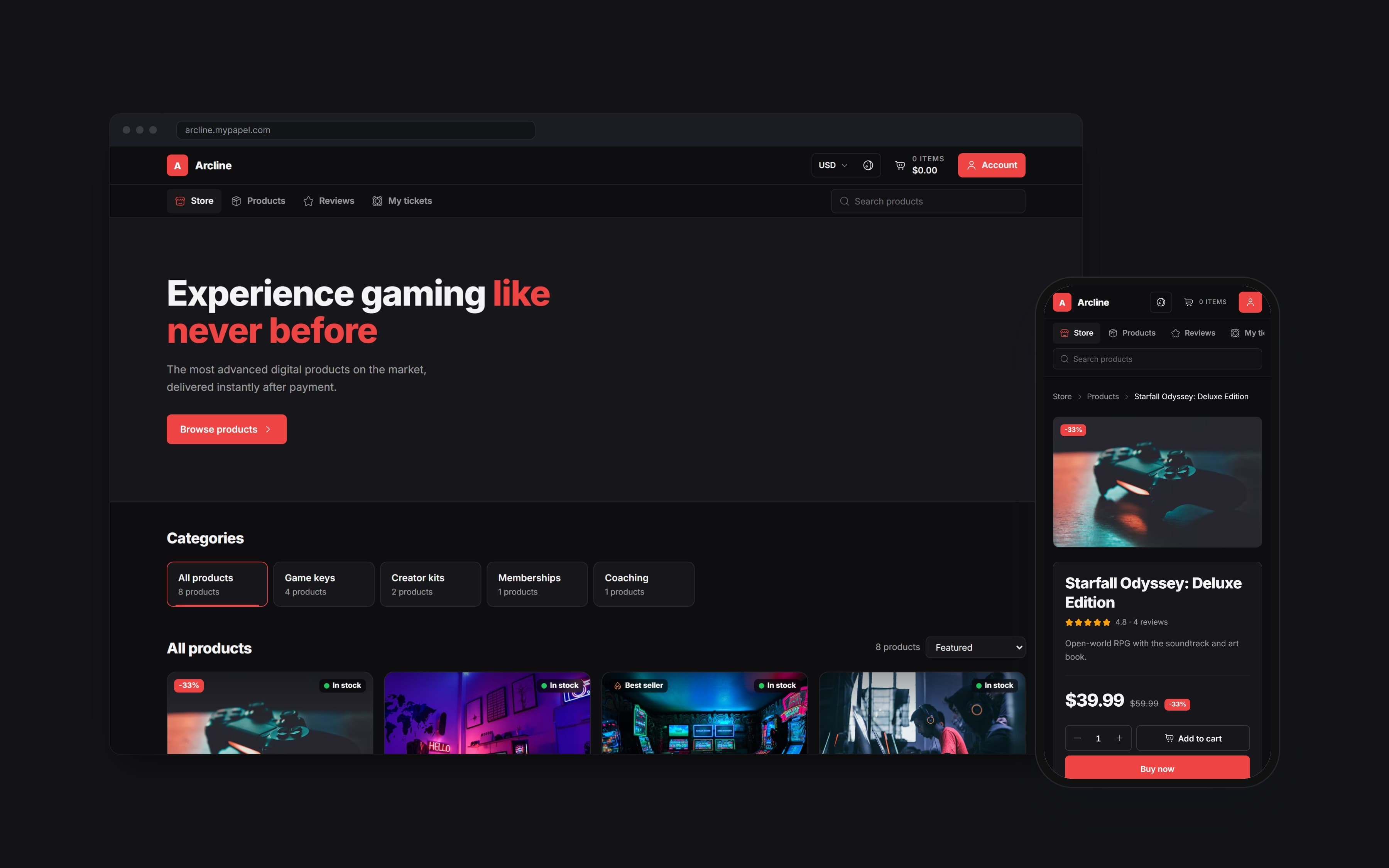
Whatever theme you use, say on the product page exactly what the Discord role includes. "Includes the Pro role: a priority support channel and early builds" tells a buyer far more than "Discord access", and it sets the expectation your channels then have to meet.
Gyakran ismételt kérdések
Let the order decide who gets in
A Discord role is the simplest kind of access you can sell: a label, a few channel permissions and a rule about who receives it. Running that rule from the store removes the manual step between payment and access, keeps every role traceable to a buyer and gives your team back the time it spent on the order list.
Plan the role map, lock the channels, connect the server and test with a second account. After that, the community grows at the speed of your sales, not your inbox. For the wider picture of running a store, read how to sell digital products online.
PapelShip e-kereskedelmi csapat
Webáruházak és online értékesítés